
If you already edit content in pTools v8, this quick guide will highlight the main concepts and screen differences you'll notice in pTools v8.1
Most of what you know still applies. What has changed is the look of the CMS, which now runs on Umbraco 17, plus a new set of tools to help your content get found and quoted by AI assistants such as ChatGPT, Claude and Gemini, as well as by classic search engines.
AI Features
pTools v8.1 also brings AI features built on pTools’ Teravera AI platform:
-
Teravera AI Agents: Deploy AI Agents on your website so your audience can ask questions and get answers grounded in your approved content and sources.
-
AI-powered search: Matches on meaning, so you no longer have to type the exact words that appear on a page.
-
AI-friendly URLs: The CMS can suggest page addresses that read clearly for people and AI platforms alike.
-
Real-time checks before you publish: Your content is checked for accessibility issues, plain language problems, missing metadata and gaps in AI readiness before anything goes live.
You will need a Teravera AI account to use these features.
From the SEO Checker to the AEO Tab
In v8 you checked a page's SEO with the SEO Checker on the Metadata tab. In v8.1 that functionality moves to the new AEO tab, and it goes a lot further. AEO stands for Answer Engine Optimisation, which simply means making your pages easy for AI assistants to find, understand and quote. Classic Search Engine Optimisation is still covered too.
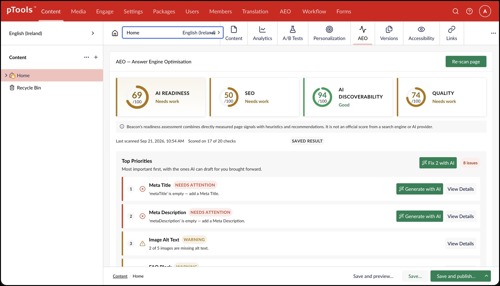
Every page now has its own AEO scorecard, so you can see at a glance how ready it is to be found and quoted by AI assistants and search engines. Four scores out of 100 (AI Readiness, SEO, AI Discoverability and Quality) sit alongside a ranked list of what to fix first.
For many issues, AI can draft the fix for you:
-
Page titles and meta descriptions
-
Heading structure
-
Image alt text
-
FAQs, definitions and page introductions
Every suggestion is a draft to review, and nothing changes on your page until you apply it. The AI also won’t pad out a thin page, because that would mean inventing facts.
Scans run whenever you want them, and the tab flags any page that has changed since its last one. A page preview also shows what AI services will read from it, such as its title, description, dates and main image.
Sustainability
Sustainability now lives on the Content tab as a dashboard, rather than as its own tab in the navigation bar. Instead of testing pages one at a time, you can scan every page on your site in one go. The scan runs on the server, so you can carry on working, or even close the page, while it runs.
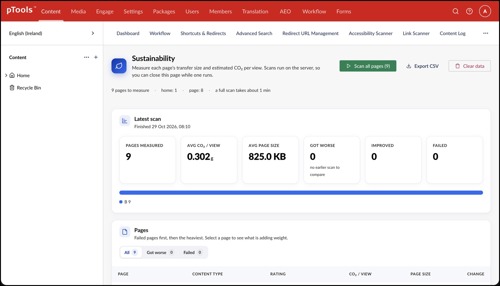
Each page gets a rating, its estimated CO₂ per view and its page size, with failed and heaviest pages listed first. After your next scan you’ll also see which pages got worse or improved since the last one. Select a page to see what is adding weight, or export the results as a CSV file.
AEO for Your Whole Site
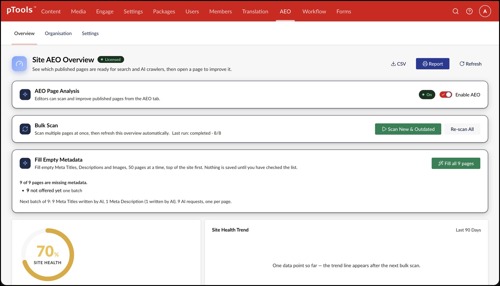
AEO tools allows you to scan your whole site instead of one page at a time. It has three areas: Overview, Organisation and Settings.
Overview gives you a Site Health score along with four site scores (Overall, SEO, AI Crawler and Quality). You can see how many pages are Good, Warning or Needs Attention, and the Top Issues across the site are listed underneath. Clicking an issue to shows which pages have it. Issues tagged "AI Fixable" can be drafted with AI on each page, and Pages to Review takes you straight to a page's AEO tab. From here you can also scan lots of pages at once, follow trends and export the results as a CSV file or a report.
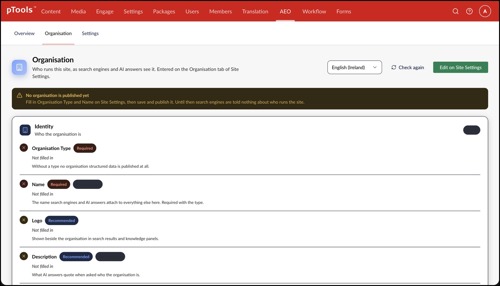
In Organisation you enter your organisation's details and they're added to every page in a format search engines and AI tools can read, so there's nothing to do page by page. Fields marked with a globe can be different for each language.
Scheduled Batch Releases
New in v8.1 is Scheduled Batch Releases. Instead of publishing pages one by one, you can group several of them and release them all together, which is useful for a campaign, a launch or a seasonal update. Releases also take time zones into account, so content goes live at the right moment wherever the editor happens to be.
Content Log
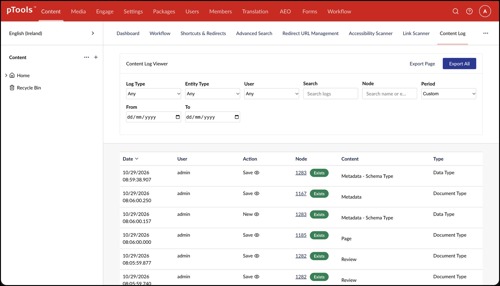
The Content Log is new. Think of it as a searchable history of changes across the whole site: who did what, to which item and when. You can narrow it down by type of action (Save, Publish, Move or Delete, for example), by type of item, by user, by a single page or by date, then export what you find.
Shortcuts & Redirects
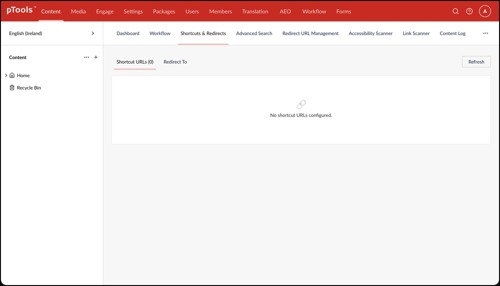
Shortcuts & Redirects is a new dashboard. It lists every Shortcut URL on your site in one place, along with every page set to redirect elsewhere using Redirect To. It replaces the Shortcuts dashboard from v8: you now add short addresses with the Shortcut URL field on each page, and they're listed here.
Other Changes
When you open a page, you’ll find new views, including Versions, AEO, Sustainability and Links. Versions lets you work on another version of a page while the current one stays live, Sustainability shows the page’s rating and what is adding weight, and Links checks every link and image on that page for broken links and redirects. AEO is covered above. On the Metadata tab there are three new fields: Meta Title (the title shown in search results and AI answers), Canonical URL (tells search engines which address is the main one) and No Index (keeps a page out of search results). Meta Keywords has been removed. Basic Details has a new Shortcut URL field, and the text editor has a new Dictate button so you can speak your text instead of typing it.
On the Content tab, the Link Scanner has a simpler layout. It shows the percentage of links that are OK, with totals for Broken, Redirects, Unverified and OK, and you can search problem links by page name. The Accessibility Scanner is now called the Accessibility Reporter, Advanced Search has a new Approximate search option that allows for small spelling differences, and a new Audit Trail records sign-ins and changes to user accounts.
Questions?
We are always happy to help. Just get in touch with Suraj Pandey at suraj.pandey@ptools.com